Voice Input for Codex on Mac: Clear Prompts You Can Review
Dictate into Codex on Mac, organize spoken requirements without inventing tasks, and troubleshoot copy fallback, permissions and mixed-language terms.
ListenIn steps reviewed against the 0.3.7 test build on October 12, 2026. The public download was 0.3.6 on that date; newer controls may not be available in that release. Check the public release
Quick answer
To dictate a reviewable Codex prompt with ListenIn, focus the composer, tap your configured trigger, speak, then stop and review the inserted text before sending. Enable Write prompts in AI coding tools in ListenIn Settings → Dictation. It organizes goals and constraints in paragraphs or lists; it does not execute the task.
A useful spoken coding prompt tells the agent what to change, why, and what to leave alone. Adding bullets to a rambling transcript does not necessarily make those relationships clear. The goal is a written instruction you can inspect before the coding tool starts work.
ListenIn is a Mac dictation app: it recognizes speech on-device, cleans up the recognized text, and inserts it into the focused field when safe. In a recognized Codex desktop app, its optional prompt mode organizes that text for an AI agent. It does not inspect your repository, fix the bug, or send the prompt for you.
Choose dictation or a live voice conversation
OpenAI distinguishes live voice conversations from voice dictation. Dictation turns speech into prompt text before you send it; live voice lets you talk through work and steer a task. Availability and controls depend on the current app, account and workspace. Check the native option first if it already meets your needs.
| Your task | Starting point |
|---|---|
| Talk back and forth about a running task | The coding tool’s live voice feature, where available |
| Read and edit the exact instruction before sending | Native dictation or a system-wide dictation app |
| Use one dictation shortcut across Codex, email and notes | A system-wide Mac app such as ListenIn |
| Keep both speech recognition and cleanup on your Mac | ListenIn with a downloaded speech model and localhost Ollama in Offline mode |
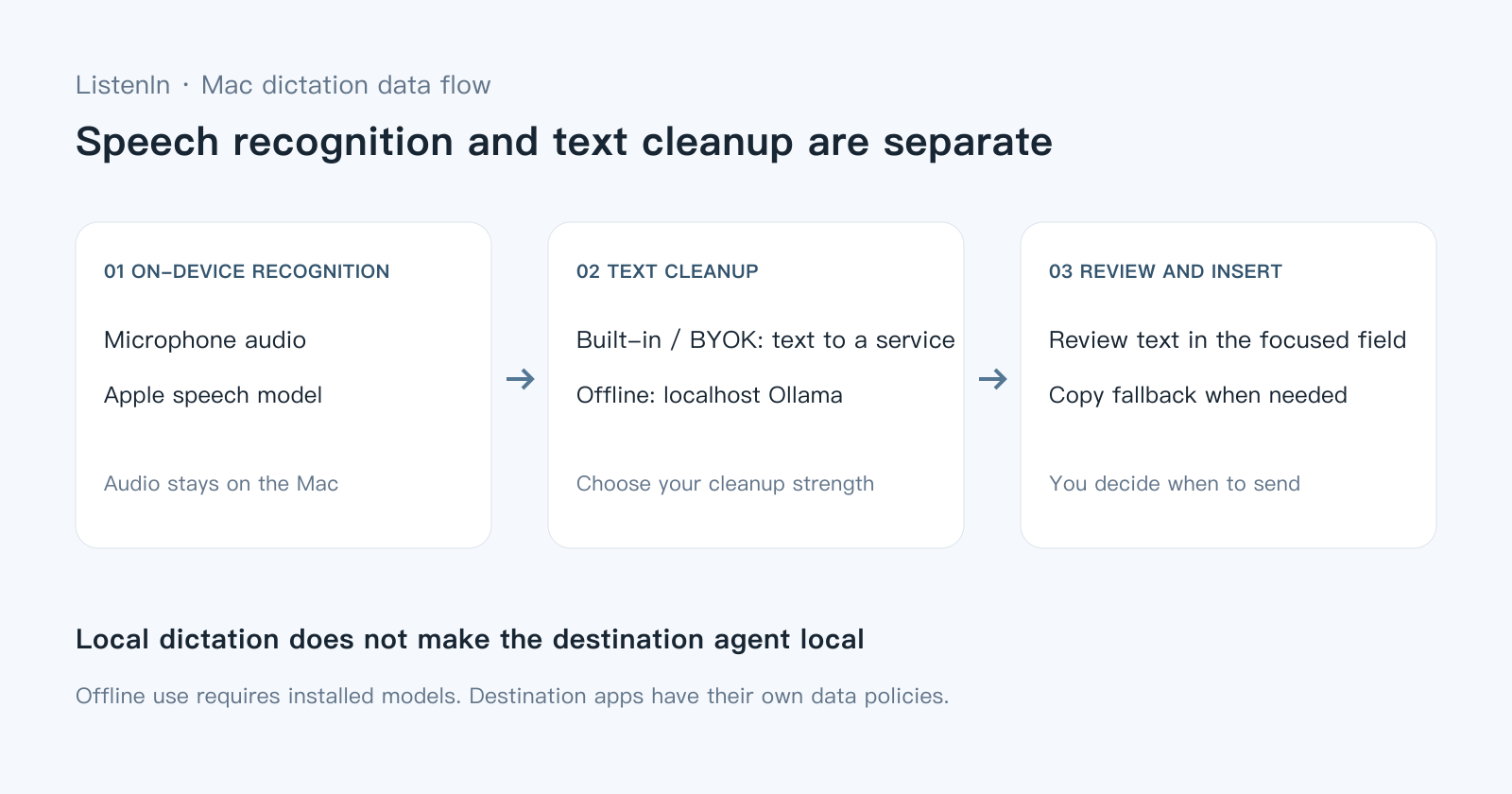
A local dictation pipeline does not make the destination coding agent local. Once you send the prompt, Codex processes it under its own settings and data policies. Local versus cloud dictation explains that boundary.
Set up ListenIn for the Codex composer
- Install ListenIn on macOS 14 or later. Complete its microphone, speech recognition and Accessibility setup. On macOS 14–15, check that the requested dictation language is downloaded.
- In ListenIn Settings → Dictation, enable Write prompts in AI coding tools. This setting selects instruction cleanup in recognized coding apps. Cleanup strength for ordinary apps is a separate choice.
- Check your configured trigger in the same tab. The default is fn/Globe, but a fresh install can choose Right Command if macOS already owns fn. Do not assume the key printed in a guide is the key on your Mac.
- Open a Codex task and click its composer. Tap the trigger, speak your instruction, then tap again to stop. If you configured a hold interaction, use that instead.
- Read the inserted text. Correct identifiers or missing details, then send it yourself.
Test with a harmless request before a task involving production data. The purpose is to check focus and text delivery, not to ask the coding agent to perform extra work. If fn opens emoji or switches languages, follow the shortcut conflict guide.
Organize meaning before choosing paragraphs or lists
The current prompt cleanup rules put the goal first, merge repeated requests, and keep reasons and constraints beside the action they explain. A simple request can remain one sentence. Multiple independent requirements may use a list. Neither format should add tests, tools, file paths or implementation choices you did not speak.
This example was returned by ListenIn’s built-in cleanup in a development check on October 12, 2026. It is a behavior sample, not an accuracy benchmark or a guarantee for every utterance.
Test transcript representing spoken wording:
那个设置里按钮太小了,然后点起来容易点错,我想让它更容易点击,但是别把整个页面都改了。
Cleaned prompt:
提高设置按钮的点击便利性,解决按钮太小、容易误点的问题;不要改动整个页面。
The output names the action, preserves the reason, and keeps the scope limit. It does not invent a minimum button size or a redesign plan. A genuine question such as “I am not sure whether this is a cache problem; investigate first and do not clear the cache” must remain uncertain. Cleanup should not turn it into “clear the cache.”
The result still depends on the recognizer and cleanup model. Compare the original and final text in Dictation History if a term or constraint looks wrong. Choosing a cleanup strength explains what to check.
If Codex gets a copy card instead of inserted text
A copy card means ListenIn kept the result but could not establish safe automatic insertion. A visible caret alone is not proof that the app exposes a writable Accessibility element.
| Check | Next step |
|---|---|
| Accessibility permission is missing | Grant it to the installed ListenIn copy, then retry |
| You changed app, field or selection during recording or cleanup | Focus the intended composer again and use Copy, then paste manually |
| The field is secure, or Terminal uses Secure Keyboard Entry | Keep the security protection; use manual copy and paste where appropriate |
| The app does not expose enough field information | Use the copy fallback rather than repeatedly dictating the same text |
Clicking Copy puts the result on the clipboard and replaces the recovery card with a short Copied toast. It does not submit the prompt. Do not press Enter until you have checked where the text landed.
For Codex CLI inside Terminal, iTerm2 or another terminal, delivery depends on the terminal and its secure-input state. Terminal dictation troubleshooting covers that route separately.
Desktop apps and browser fields have different detection limits
ListenIn captures the target when recording starts. Native coding apps are recognized by their app identity. Where the focused field’s Accessibility ancestors expose a web URL, ListenIn can recognize supported AI sites and distinguish some web mail, chat and document contexts. Search and password fields are excluded from automatic agent routing.
It does not read your prompt body or repository to decide the style. Browser support depends on the Accessibility information the browser exposes; an unknown site or unavailable URL falls back to the app-level context. A browser tab containing a coding-related title is not sufficient evidence by itself.
Keep English identifiers and Chinese requirements together
You can dictate Chinese instructions containing English terms such as token, cache and unchanged. Use the Personal Dictionary for project vocabulary and explicit replacements for a repeated, unambiguous error. Spell or edit exact paths and symbols when speech leaves ambiguity.
Start with the mixed Chinese–English guide if the raw transcript already has the wrong English word. Prompt formatting cannot reconstruct an identifier that was never reliably recognized.
What stays local, and what needs the network?
Speech recognition runs on the Mac. Built-in cleanup sends the recognized text to ListenIn’s service; BYOK sends it to your selected provider. Localhost Ollama in Offline mode keeps cleanup on the same Mac after the required models are installed. Raw dictation and short bypassed inputs follow their own path, so use the mode-by-mode security table for the full boundary.
Use the Ollama setup guide if local cleanup is the requirement. Then test the composer with networking disconnected. A successful offline dictation test verifies that dictation run, not the behavior of Codex after you send the prompt.
Try it on your own Mac
Free tier, no account. Audio never leaves your Mac.
Published by the maker of ListenIn. Third-party information follows the sources and dates stated in this guide.