Chinese–English Dictation on Mac: Fix Misheard English Words
Diagnose English words misheard inside Chinese speech, separate recognition from cleanup, and test dictionaries, exact replacements and local models.
ListenIn steps reviewed against the 0.3.7 test build on October 12, 2026. The public download was 0.3.6 on that date; newer controls may not be available in that release. Check the public release
Quick answer
When an English word is wrong inside Chinese dictation, compare the raw transcript with the cleaned text first. ListenIn combines on-device Apple recognition with conservative repair, a Personal Dictionary and scoped exact replacements. These can help, but a fluent sentence is not proof that the recognizer heard the correct word.
“Keep this part unchanged” and “this part changed” can request opposite edits. An English term inside a Chinese sentence is not decoration: it may be the exact condition, product name or technical identifier the listener needs. A dictation tool must preserve that meaning, not simply produce a fluent sentence.
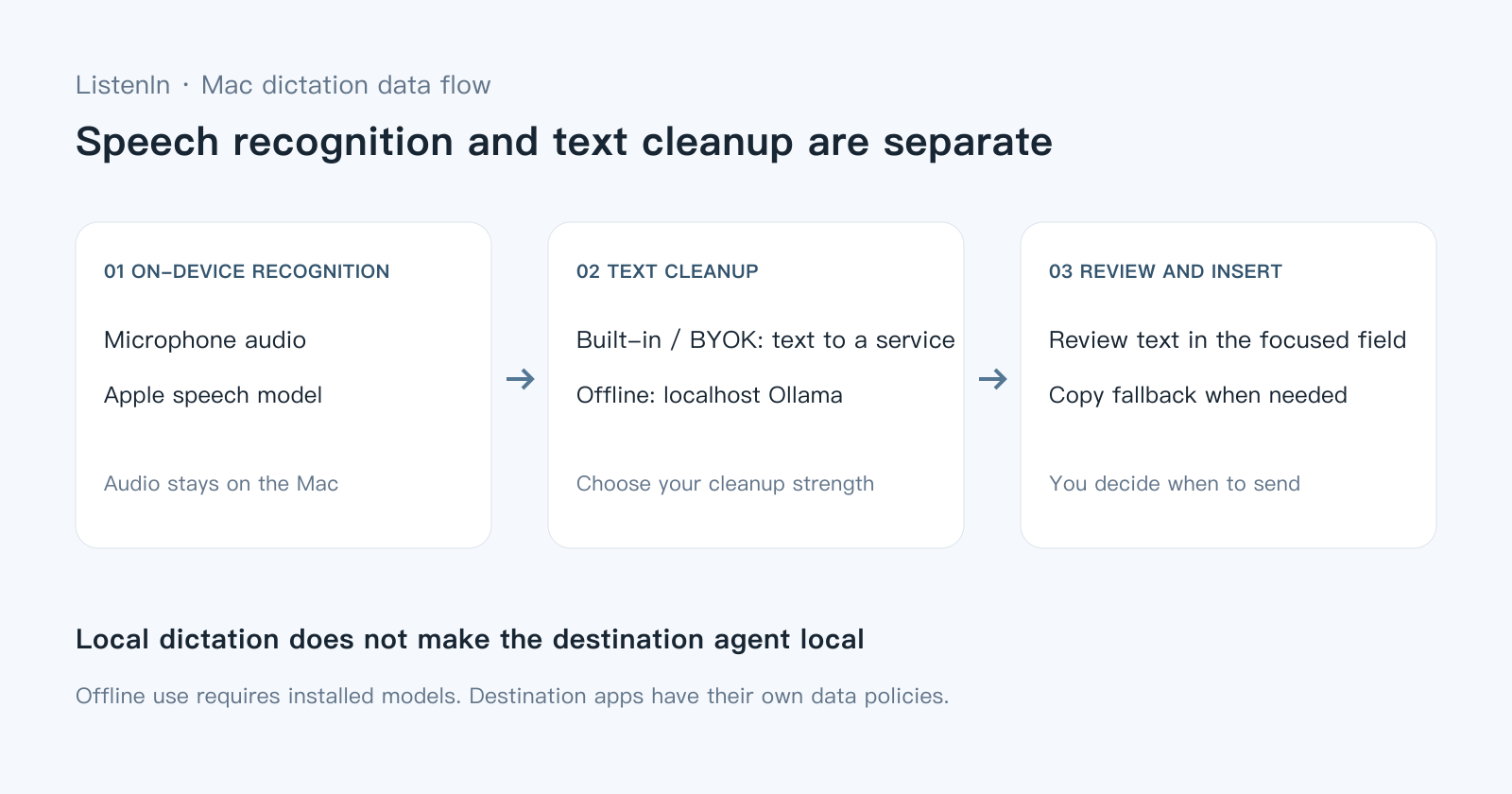
ListenIn supports Chinese speech with embedded English terms without a per-word language switch. Its recognition runs on the Mac; cleanup works on the resulting text. This guide explains where an error can enter, what the current repair paths can do, and how to test the result in your own workflow. It does not claim an accuracy advantage over another app.
Is the mistake in recognition or cleanup?
Open ListenIn → Dictation History and compare the original transcript with the final output. Identify the first stage where the word changed.
| Original transcript | Final output | What to investigate |
|---|---|---|
| Wrong English word | Same wrong word | Recognition missed it; cleanup lacked enough evidence to repair it |
| Wrong word | Correct word | Repair helped on this utterance; repeat it in another context before trusting it |
| Correct English word | A different word | Cleanup or a replacement rule changed something that should have stayed |
| Correct words | Correct words but wrong instruction | Restructuring lost a condition or scope limit |
For example, insight becoming inside is an English recognition problem if inside already appears in the raw transcript. unchanged becoming changed is also a meaning problem, because it removes the negative condition. These are diagnostic examples, not instructions to replace every occurrence of inside or changed.
If the raw transcript is correct, reduce cleanup strength and check your replacement rules. Changing the microphone cannot fix a later text transformation.
What ListenIn currently does for mixed-language speech
ListenIn’s two-stage design gives several opportunities to improve the result, each with a different limit.
| Mechanism | Useful for | Limit |
|---|---|---|
| On-device Apple speech recognition | Producing the original Chinese and English transcript | Asset availability, accent, microphone and context affect recognition |
| Conservative English audio verification | Checking some suspicious English words against the recorded audio | Requires usable timing and evidence; ambiguity should remain unchanged |
| Cleanup instructions | Repairing a plausible sound-alike in context; preserving embedded English | Context alone is not permission to invent a different technical term |
| Personal Dictionary | Giving cleanup the correct spelling of recurring vocabulary | It does not retrain Apple’s speech model |
| Explicit replacement rules | Repeating a known correction locally, globally or per app | A bad rule can repeatedly change a correct phrase |
The audio verification path is bounded rather than a second full recording transcription. It may be skipped when evidence is missing or the time budget expires. A cleanup model should retain high-confidence or protected words rather than replace them merely because a different phrase sounds smoother. None of these controls can guarantee the intended word in every recording.
Add vocabulary, then use exact rules selectively
Start with the terms you actually use: project names, people, product spellings and uncommon English words. Open Settings → Dictionary and add the intended spellings. Test them inside full sentences, not only as isolated words. The dictionary guide explains vocabulary, learned corrections and explicit rules separately.
If a wrong phrase repeats reliably, add an explicit replacement in Dictionary → Exact replacements. Choose the smallest unambiguous phrase and an app scope if the correction is only valid in that app. A project phrase such as right the migration note may justify a phrase rule in a coding tool; a global right → write rule would corrupt ordinary text about the right side of a window.
Review learned suggestions instead of accepting every edit as a permanent instruction. Delete or undo a rule that changes correct words. Export your dictionary before moving to another Mac.
A word list is useful context, not a guarantee. If the expected term never appears in a reliable transcript, spell it once or edit it before sending a consequential message.
Test meaning with a small repeatable set
Use sentences close to your own work. The following are proposed test inputs, not published benchmark results.
| Test input | Check |
|---|---|
| 保留这一段 unchanged,只调整下面的 layout。 | unchanged stays negative; only the lower layout changes |
| 这里需要的是 user insight,不是 inside 的位置。 | Both English words survive in their different roles |
| 先检查 cache,别直接清掉。 | The “do not clear” condition survives |
| 我想 write anything in plain words。 | Verb and phrase make sense without inventing additional content |
| 这个方案可能可行,先确认,不要直接上线。 | Uncertainty and the deployment restriction remain |
Run each input more than once in Notes and in your actual target app. Compare the original and final text separately. Count wrong terms, missing constraints, unnecessary rewrites and failed insertion as different errors; one overall “accuracy” number hides which part needs work.
Use the same microphone, selected language, cleanup mode and model when comparing apps. Include a sentence where the supposedly problematic word is already correct. A repair that fixes one case while breaking that control case is not an improvement.
Does selecting Chinese prevent English words?
No: the selected recognition language and embedded English terms are separate questions. Start with the language appropriate for the main sentence and test your recurring English vocabulary. Availability differs across Apple’s engines and language assets. Apple’s Mac Dictation guide explains system language settings; ListenIn’s language-model troubleshooting guide covers its on-device requirement.
Chinese script is another separate setting. Always Traditional or Always Simplified controls Chinese output; it is not translation of English identifiers. See the script-lock guide.
Will a local cleanup model solve the problem?
It changes the cleanup stage, not the original recognizer. Localhost Ollama keeps cleanup text on your Mac in Offline mode, but a small model may follow repair and preservation instructions less reliably. If the original recognition is wrong, changing only the cleanup model is not a guaranteed remedy.
Follow the local setup guide, then rerun the same sentences. Compare warm and first-use latency separately. Keep the original transcript available so you can distinguish recognition changes from cleanup changes.
Built-in cleanup sends recognized text, not microphone audio, to ListenIn’s service. BYOK sends text to your configured provider. A remote or LAN model is not equivalent to localhost; the security table describes the paths.
When should you edit instead of asking for another repair?
Edit exact paths, numbers, code symbols and ambiguous names before sending them to a person or coding agent. A model choosing a plausible sentence is not enough to establish that it matches the audio. If ListenIn cannot safely insert the result, the copy card preserves the text for manual paste; use it instead of repeating the same dictation into a changed target.
For a useful bug report, include the phrase you meant, the raw transcript, the cleaned result, the selected language and model, and whether it happened in one app or several. Share only the text you are comfortable disclosing. Settings → Report a Problem provides a feedback entry; an entire private recording is not needed to describe a word-level error.
Try it on your own Mac
Free tier, no account. Audio never leaves your Mac.
Published by the maker of ListenIn. Third-party information follows the sources and dates stated in this guide.